How to Make a Number List in Excel
Creating a numbered list in Microsoft Excel is a basic skill that can improve the clarity of your worksheets, especially when you need to track items, steps, or priorities. Whether you’re preparing a simple to‑do list or a complex data entry form, Excel offers several fast ways to generate sequential numbers. This article walks you through the most common methods, from the autofill handle to formulas, and shows how to sort or modify the list without losing the sequence.
Why Use a Number List?
A numbered list provides a clear order that can be referenced in reports, formulas, or discussions with teammates. It also helps when you need to:
- Identify rows quickly during data validation.
- Create unique IDs for inventory or project tasks.
- Maintain a consistent order after sorting other columns.
Method 1: Using the Fill Handle for Quick Sequences
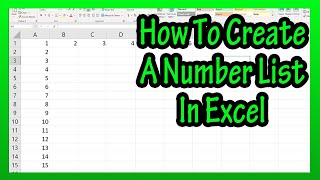
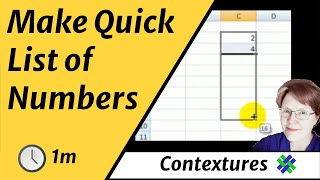
The easiest way to generate a sequential list is the Fill Handle, the small square at the bottom‑right corner of a selected cell.
- Enter the first number of your list in a cell (e.g., 1).
- Enter the second number directly below (e.g., 2) to define the step.
- Select both cells.
- Drag the Fill Handle down the column until you reach the desired length.
This method automatically continues the pattern you defined, whether you need a step of 1, 5, or any other increment. It works quickly for short to moderate lists and is perfect for “quickly” creating sequential numbers, as demonstrated on many tutorial videos.
Method 2: Using the ROW Function for Dynamic Lists
When you need a list that updates automatically as rows are added or deleted, a formula based on the ROW function is ideal.
- Click the first cell where you want the number to appear.
- Enter the formula: =ROW()‑ROW($A$1)+1. Replace $A$1 with the reference of the first cell in your range.
- Press Enter, then copy the formula down the column.
The formula calculates the current row number minus the row of the start cell, plus one, giving you a clean sequential list that adjusts automatically when rows are inserted or removed.