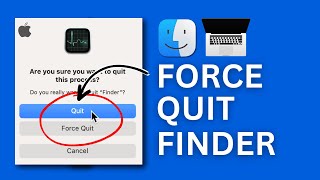
How To Quit Finder on Mac: A Complete Guide
If you’ve ever wondered how to completely stop Finder from running on your Mac, you’re not alone. While Finder is the default file manager, there are situations—such as troubleshooting, performance tweaks, or using an alternative file manager—where quitting it becomes necessary. This article will learn the safest methods, explain why you might want to do it, and provide step‑by‑step instructions.
Why Would You Want to Quit Finder?
Finder is essential for everyday navigation, but there are legitimate reasons to quit it:
- Performance issues: A frozen Finder can slow down the whole system.
- Testing alternative file managers: Some users prefer tools like Path Finder or Commander One.
- System troubleshooting: Restarting Finder often resolves odd visual glitches.
- Automation: Scripts that manipulate the file system sometimes require Finder to be closed.
It’s easy to quit Finder temporarily, and it will automatically relaunch when you need it again.
Five Quick and Easy Ways to Quit Finder on Mac
Below are five proven methods. Choose the one that fits your workflow.
1. Use the Force Quit Window
- Press Command ⌘ + Option ⌥ + Esc to open the Force Quit dialog.
- Select Finder from the list.
- Click Relaunch. This forces Finder to quit and immediately start again.
This method is the quickest for a simple restart.
2. Quit Finder from the Dock
- Hold the Option key and right‑click (or Control‑click) the Finder icon in the Dock.
- Select Relaunch from the context menu.
It’s a handy shortcut if you already have the Dock in view.
3. Use Terminal Commands
For users comfortable with the command line, Terminal provides precise control.
- Open Terminal (found in Applications → Utilities).
- Enter the following command and press Enter: killall Finder
- Finder will quit instantly and restart automatically.
If you prefer to keep Finder closed, add the -STOP flag:
killall -STOP FinderTo start it again later, use:
killall -CONT Finder4. Create a Quick Action with Automator
Automator lets you build a reusable service: