How To Screenshot In Microsoft Keyboard: A Complete Step‑By‑Step Guide
If you spend a lot of time working on a Windows PC, knowing how to capture the screen quickly can boost your productivity. Whether you need to share a bug report, create a tutorial, or simply save a memorable moment, the Microsoft keyboard offers several built‑in shortcuts for taking screenshots. This article walks you through every method, from the classic Print Screen key to the modern Windows + Shift + S snipping tool, so you can choose the technique that best fits your workflow.
Why Master Keyboard Screenshot Shortcuts?
Relying on mouse‑only tools can slow you down, especially when you need to capture multiple images in rapid succession. Keyboard shortcuts are instant, require no extra software, and work on any Windows device, including laptops, desktops, and tablets. Learning how to take screenshots directly from the Microsoft keyboard ensures you stay focused and keep your hands on the keyboard.
Basic Screenshot Methods
Windows provides three core keyboard shortcuts for capturing the screen:
- Print Screen (PrtScn) – Copies the entire screen to the clipboard.
- Alt + Print Screen – Copies only the active window to the clipboard.
- Windows + Print Screen – Saves the whole screen as a file in the Pictures\Screenshots folder.
Each method has its own use case, and the best one depends on whether you need to edit the image immediately or store it automatically.
Step‑By‑Step: Using the Print Screen Key
In this step‑by‑step tutorial, learn how to take a screenshot with the traditional Print Screen key:
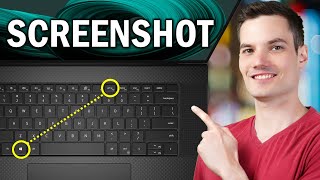
- Locate the Print Screen key on your Microsoft keyboard. On most keyboards it is labeled PrtScn and sits near the top‑right corner.
- Press PrtScn. The entire screen is now copied to the Windows clipboard.
- Open an image editor such as Paint or Photoshop.
- Press Ctrl + V to paste the screenshot.
- Save the file in your preferred format (PNG, JPEG, etc.).
This method is ideal when you want to edit the screenshot before saving it.
Capturing Only the Active Window
If you need to focus on a single application, the Alt + Print Screen shortcut is your go‑to solution. Follow these steps:
- Click the window you want to capture to make it active.
- Hold down the Alt key and press PrtScn.
- Open your preferred image editor and paste the screenshot with