How to Disable the Startup Sound on a Lenovo ThinkPad T14
If you own a Lenovo ThinkPad T14, you may have noticed a brief chime each time the laptop powers on. While the sound is intended to confirm that the system has booted correctly, many users prefer a silent startup for a quieter workspace or to avoid startling colleagues. This article walks you through three reliable methods to mute the startup sound: using Lenovo Vantage, adjusting Windows sound settings, and disabling the tone in the BIOS/UEFI.
Understanding the Startup Sound
The ThinkPad T14’s startup sound is generated by the firmware before the operating system loads. It is stored in the BIOS and can be overridden by software utilities provided by Lenovo. Because the sound is controlled at both the firmware and OS levels, you may need to adjust settings in more than one place to achieve a completely silent boot.
Method 1: Disable the Sound with Lenovo Vantage
Lenovo Vantage is the official utility for managing hardware features on ThinkPad laptops. It includes a simple toggle for the startup chime.
Step 1: Launch Lenovo Vantage
- Click the Start menu and type “Lenovo Vantage”.
- Select the app from the search results. If it is not installed, download it from the Microsoft Store.
Step 2: Navigate to the “Audio” Settings
- In the left‑hand navigation pane, click Device, then choose Audio.
- Scroll down until you find the option labeled “Play startup sound”.
Step 3: Turn Off the Startup Sound
- Toggle the switch to Off.
- Close Lenovo Vantage. The change takes effect the next time you power on the laptop.
Method 2: Adjust Windows Sound Settings
If you prefer not to use Lenovo Vantage, you can mute the startup tone by changing the Windows sound scheme.
Step 1: Open the Sound Control Panel
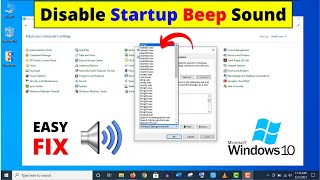
- Press Windows + R, type control mmsys.cpl, and press Enter.
- The Sound dialog box opens on the “Sounds” tab.
Step 2: Select the “Windows Logon” Event
- In the “Program

![How to Enable or Disable Startup Sound in Windows 11 [Customize]](https://i.ytimg.com/vi/xD3aifA0ESY/mqdefault.jpg)