How To Map Extra Buttons On A Logitech G502 For Excel
If you spend hours working with spreadsheets, the extra buttons on a Logitech G502 can become your secret productivity weapon. By assigning common Excel commands to the side buttons, you can navigate, format, and calculate without moving your hand from the mouse. This guide walks you through the entire process—from installing the software to fine‑tuning each button for maximum efficiency.
Why Use the G502 Side Buttons in Excel?
Excel is built around keyboard shortcuts, but many users find it faster to click a mouse button that’s already within reach. Mapping the side buttons to functions such as Ctrl + C, Ctrl + V, AutoSum, or Zoom In/Out reduces hand movement, minimizes repetitive strain, and speeds up data entry.
What You’ll Need
- A Logitech G502 (or G502 Hero) mouse.
- Logitech G HUB software (free download from Logitech’s website).
- Microsoft Excel (any recent version).
- A brief moment of patience for the initial setup.
Step‑by‑Step: Mapping Buttons for Excel
- Download and Install Logitech G HUB
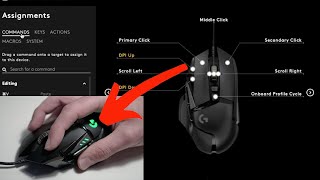
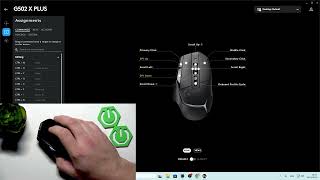
Visit the Logitech website, locate the G HUB download page, and install the application. The software automatically detects the G502 and displays a graphical representation of the mouse.
- Create a New Profile
In G HUB, click the + Add Profile button. Name the profile “Excel” so it only activates when Excel is the foreground window.
- Select the Side Buttons to Reassign
Click on the icon for Button 4 (the top side button) and then the icon for Button 5 (the bottom side button). A menu of actions will appear.
- Assign Keyboard Shortcuts
Choose Keystroke Assignment and enter the desired shortcut. For example:
- Button 4 → Ctrl + C (Copy)
- Button 5 → Ctrl + V (Paste)
- Map Additional Functions
If you need more than two shortcuts, use the Macro option. Record a short series of keystrokes (e.g., Alt + H, O, I for AutoFit Column Width) and assign it to Button 4 or Button 5.
- Save and Test
Click Save, then open Excel. Press the newly programmed buttons to confirm they perform the intended actions. If a command does not work, revisit G HUB and adjust the keystroke or macro.
- Fine‑Tune DPI Settings (Optional)
While you’re in G HUB, you can also remap